

Running an inspection
In the Autoentic app you choose INSPECT, pick your name, enter the vehicle identification number (VIN), measure the panels, review, and submit. Expect around 10 minutes a car once you're set up.
Before you start
- Your probe is paired. See Pairing your probe if this is your first session.
- This tablet or phone is signed in for your business. The app asks for it before a new car.
- You have the car's VIN. It's visible through the windshield, or on a sticker in the driver-side doorjamb.
- You know which kind of inspection you're running, Metal Panels or All Panels, so you know which panels to measure.
- You have your own phone with you. The app may text you a 6-digit code when you pick your name.
Running the inspection
-
Choose INSPECT. Once your probe is connected, the app shows its main screen with two cards, INSPECT and REFERENCE. The INSPECT card reads "Score a used vehicle against factory specs". Tap it. If the card is greyed out and the app shows Sign in, this tablet or phone isn't signed in for your business yet. Signing in each tablet or phone has the steps.
-
Select your name. The app lists the inspectors registered at your business. Tap your name, or tap Add New Inspector and enter your name and mobile number. If the app asks for a code, it is sent to your phone by text message. Enter it and tap Verify. The first time, you also accept a privacy notice.
-
Enter the VIN. Type the 17-character VIN and tap Decode VIN, or tap Scan VIN with Camera. Photos are read by Google Gemini, an AI service, to find the VIN. The app shows the vehicle it found. Check that it is the car in front of you, then tap Confirm Vehicle. If the color is missing, pick it from the list or continue without it.
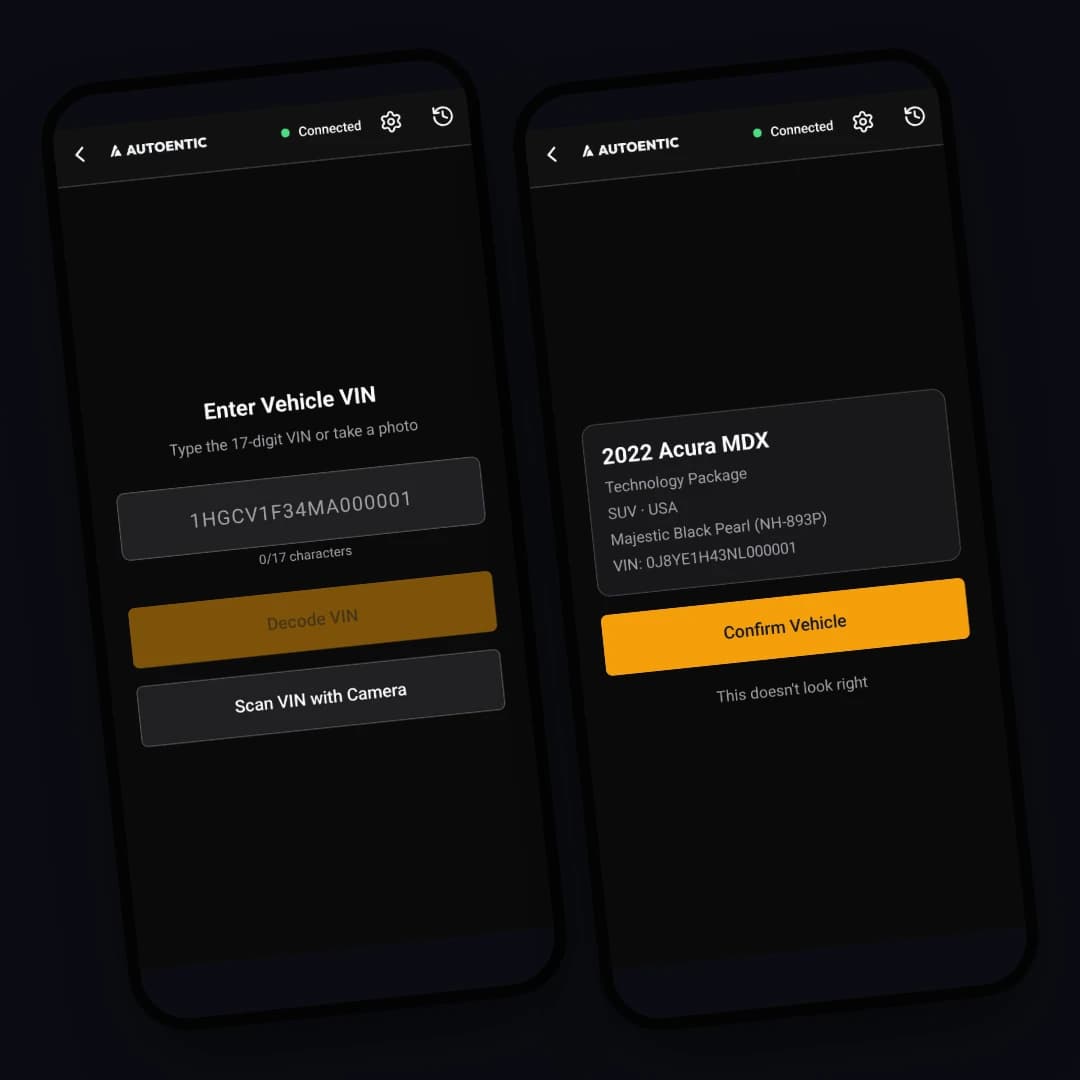
The VIN screen, and the vehicle the app found. -
Measure the panels. Tap a panel, then take its readings. Touch the probe to the surface, wait for the reading to register, lift it, and move to a new spot. Spread the readings across the whole panel, including edges and center. Then tap the next panel. A reading cannot be removed, so if the probe slipped, take another one and add a note to the bad reading at review. To be led from panel to panel, turn on Guided in Settings.
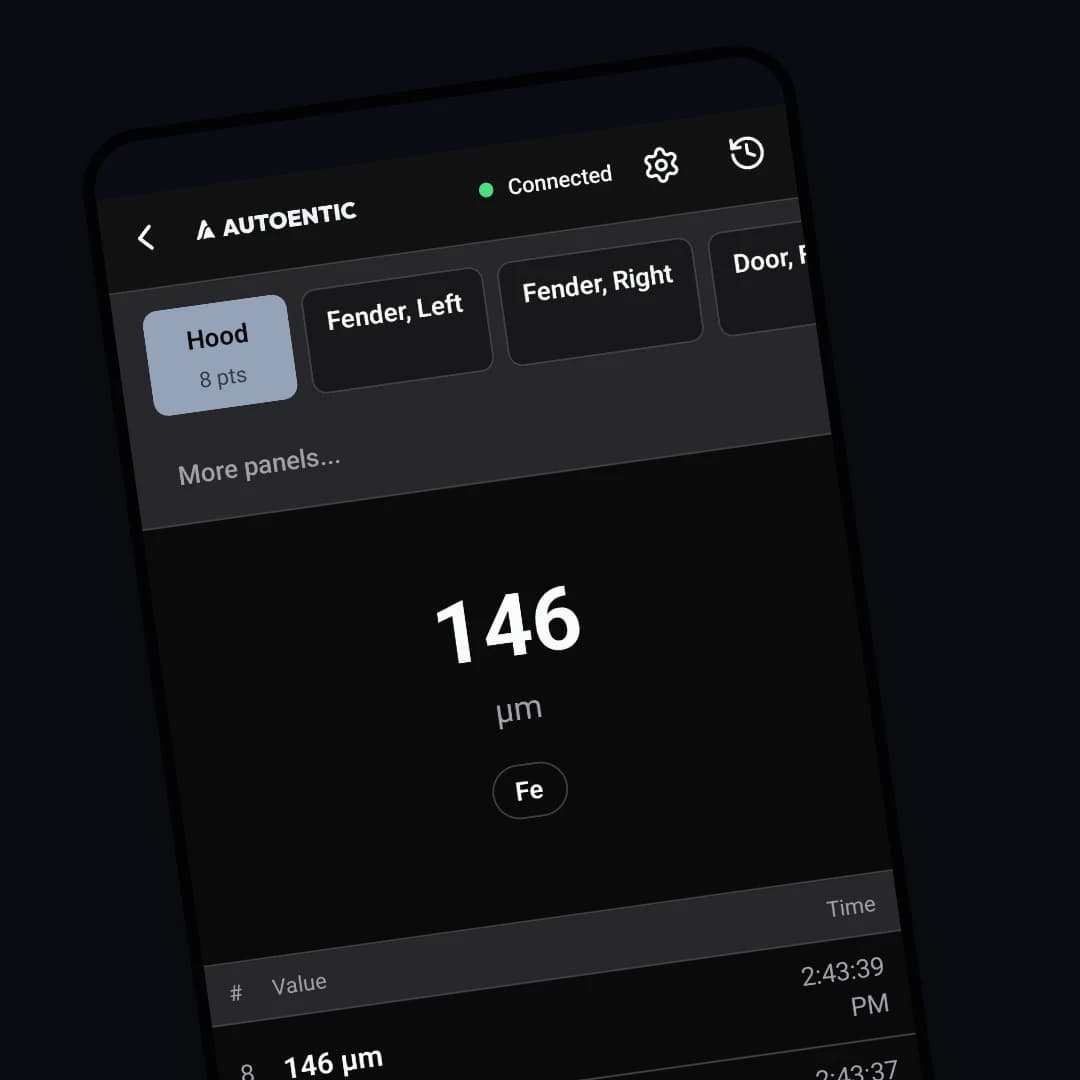
A live reading on the hood. The row of tabs holds the other panels. -
Review and submit. When you're done measuring, tap Submit. The Review Session screen shows every reading, grouped by panel. To leave a short note on a reading, tap it and tap Add Note. For example, you might write "near dent, probe contact may be off". When you're satisfied, tap Confirm & Submit. If the app warns that panels or readings are missing, go back and measure them. The app then uploads the session and shows it as Submitted. If the server declines the submission instead, the app tells you and keeps the session on the device, so nothing is lost. See The app says the submission was refused below.
After you submit
- The app shows the session with the status Submitted.
- The session appears under Sessions on your partner dashboard.
- The customer can look up the record by VIN at autoentic.com/paint-passport.
Typical inspection is about 10 minutes
A typical inspection runs roughly 10 minutes once you're set up. Your first one may take longer while you learn the app's rhythm.
Troubleshooting
Next steps
Managing technicians explains how the people who measure are added and removed. To see what the customer sees on the car's record, read Reading your vehicle report.